
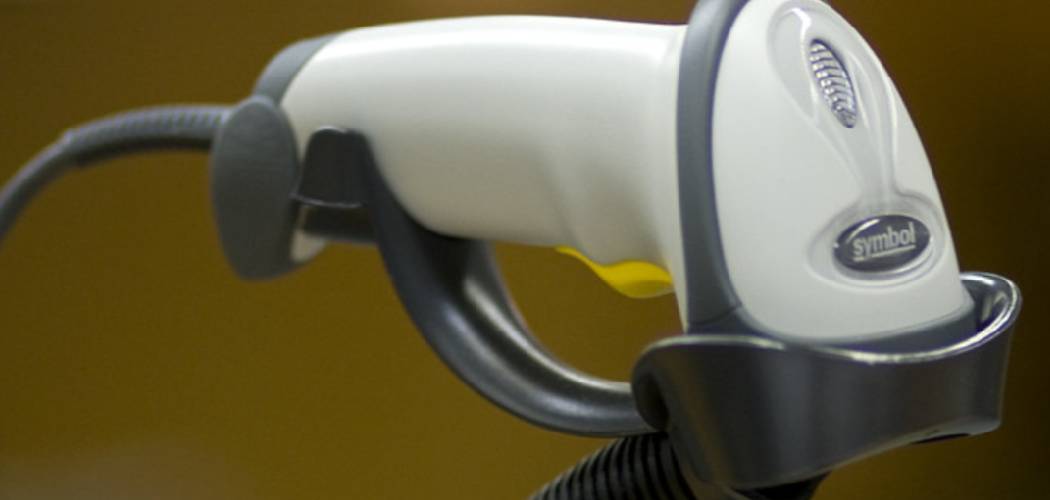
Picture this: you’ve just launched a small online shop, and boxes of inventory are stacking up in your spare room. Typing each product code by hand feels slow, and one wrong digit throws off your whole system. A barcode reader fixes that headache in seconds. With a quick beep, it captures product details, tracks stock, and keeps your records clean.
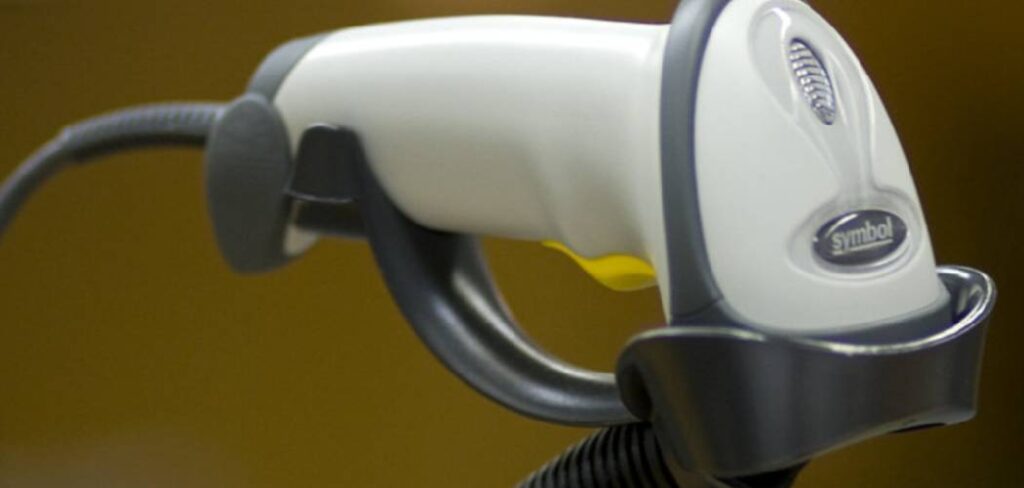
In this guide, you’ll learn exactly how to use a barcode reader, connect it to your computer or point-of-sale system, and start scanning like a pro. We’ll cover the gear you need, a clear step-by-step walkthrough, and a few insider tips most beginners miss. Whether you run a shop, manage a warehouse, or organize a home library, you’ll be up and running fast. Let’s dig in.
What You’ll Need
Gather these items before you start. Having everything on hand keeps setup smooth and stress-free.
- A barcode scanner (handheld, wireless, or 2D image-based)
- A computer, tablet, or point-of-sale (POS) terminal
- The correct connection cable (USB) or a USB receiver dongle for wireless models
- Inventory or POS software installed and ready
- The scanner’s user manual or setup sheet
- A power source or charged battery for cordless units
- A few barcoded items to test with
- A spreadsheet or database to catch your scanned data
Double-check whether your device reads 1D barcodes, 2D codes like QR, or both. Matching the scanner to your codes saves you frustration later.
Step-by-Step Guide on How to Use a Barcode Reader
Step 1: Unbox and Inspect Your Scanner
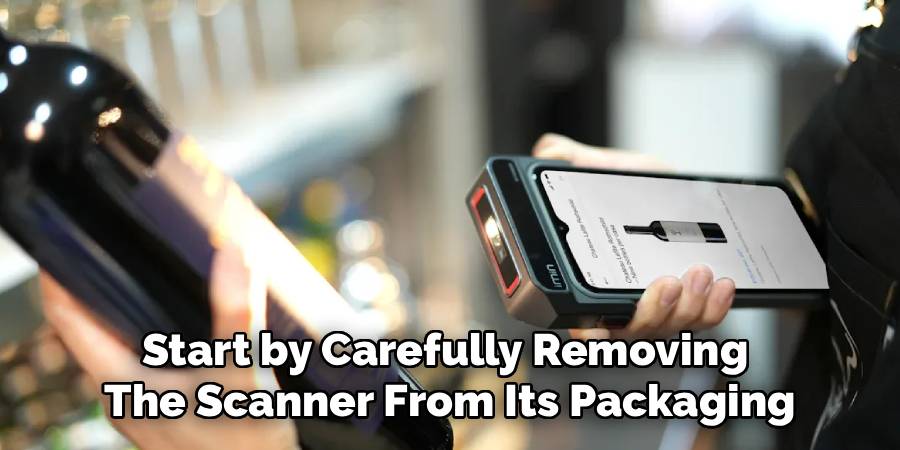
Start by carefully removing the scanner from its packaging. Check for the main unit, cables, a stand or cradle, and any setup cards. Look over the device for loose parts or shipping damage before you plug anything in. Keep the manual close, since many scanners use special “configuration barcodes” printed inside it. A quick inspection now prevents surprises during setup. If a part is missing, contact the seller before going further.
Step 2: Choose Your Connection Method
Decide how you’ll link the device to your system. Wired models plug directly into a USB port and work almost instantly. Wireless units connect through Bluetooth or a small USB dongle, giving you freedom to roam. Cordless scanners need charging first, so set them in the cradle until the battery light turns green. Pick the method that fits your workspace and workflow. For busy counters, a wired connection avoids battery worries entirely.
Step 3: Connect the Scanner to Your Device
Plug the USB cable into your computer or POS terminal, or insert the wireless receiver into a free port. Most scanners install automatically because they act like a keyboard. You’ll usually hear a beep and see a light change when the connection succeeds. For Bluetooth models, open your device’s settings and pair it just like you would a wireless mouse. Wait a moment for drivers to finish loading. If nothing happens, try a different port before assuming a fault.
Step 4: Configure the Scanner Settings
Now tune the device to match your needs. Many scanners ship in a default mode that works fine, but you can adjust behavior using configuration barcodes from the manual. Scan the code for your keyboard language, suffix settings, or symbology type. A common tweak is adding an “Enter” command after each scan, which drops your cursor to the next line automatically. This small change speeds up bulk scanning dramatically. Take your time here, since good settings save hours later.
Step 5: Open Your Target Software
Launch the program where your scanned data will land. This might be inventory software, a POS system, a spreadsheet, or a simple text field. Click inside the box or cell where you want the code to appear, so your cursor blinks there. The scanner types the digits exactly where your cursor sits, just like a keyboard would. Test with a blank document first if you’re unsure. Getting the cursor in the right spot avoids scattered, messy data.
Step 6: Perform Your First Test Scan
Grab a barcoded item and hold it a few inches from the scanner. Aim the red light or aiming line across the full width of the barcode, not just part of it. Press the trigger on handheld models, or simply present the code to hands-free units. Listen for the confirmation beep and watch the numbers pop onto your screen. If it reads correctly, you’re officially in business. Try a few more items to build your confidence.
Step 7: Adjust Distance and Angle for Clean Reads
Fine-tune your technique for faster, more reliable scans. Hold the code flat and steady, avoiding sharp angles that reflect the light away. If a scan fails, move the item slightly closer or farther until the beam covers the whole code. Damaged or wrinkled labels often need a steadier hand and better lighting. Wipe dusty scanner windows with a soft cloth for sharper reads. Small adjustments make a big difference with tricky labels.
Step 8: Scan in Volume and Verify Your Data
Once you’re comfortable, start scanning your full batch of items. Work in a steady rhythm, checking the screen every few scans to confirm the data lines up correctly. Watch for duplicate entries or blank rows, which signal a missed or double scan. Keep your items organized in a “to scan” and “scanned” pile to avoid confusion. A quick review at the end catches errors before they spread. Accurate data now means fewer corrections later.
Step 9: Power Down and Store Properly
When you finish, close your software and save your work. Return cordless scanners to their charging cradle so they’re ready for the next session. Coil the cable loosely on wired models to prevent kinks and wear. Store the unit somewhere clean and dry, away from spills or heavy foot traffic. Treating your gear well keeps it scanning reliably for years. A tidy shutdown wraps up the job the right way.
Tips for Best Results
Want to scan like a seasoned pro? These habits go beyond the basic setup.
- Keep the scanner window spotless. Dust and fingerprints scatter the light and cause failed reads. A quick wipe with a microfiber cloth restores crisp, first-try scans every time.
- Print backup labels for damaged barcodes. Torn or faded codes slow you down and frustrate customers. Keeping a small label printer nearby lets you replace bad codes on the spot.
- Test in your actual lighting conditions. Harsh glare or dim corners affect read quality more than people expect. Set up your station where light is even and steady.
- Save your configuration codes in one folder. If a scanner resets, you’ll want those setup barcodes handy to reprogram it fast. A labeled folder or photo on your phone saves a frantic search.
- Match the scanner type to your busiest task. Hands-free stands suit high-volume checkout, while handheld units win for shelf scanning. Choosing the right style boosts speed where it matters most.
Frequently Asked Questions Section
What Is the Difference Between a 1D and 2D Barcode Scanner?
A 1D scanner reads traditional striped barcodes, the kind you see on grocery packaging. A 2D scanner reads those same stripes plus square codes like QR codes and Data Matrix. Because 2D models handle more code types, they offer more flexibility for modern uses like mobile coupons and tickets. If your business uses QR codes at all, a 2D scanner is the safer long-term pick.
Do I Need Special Software to Use a Scanner?
Not always, since most scanners act like a keyboard and type directly into any text field or spreadsheet. For basic tasks, you can scan straight into Excel, Google Sheets, or a Notes app. However, dedicated inventory or POS software unlocks features like stock tracking, pricing, and sales reports. Choose based on how detailed you need your records to be.
Why Won’t My Scanner Read a Barcode?
Several things can cause a stubborn code, starting with a dirty scanner window or poor lighting. The barcode itself might be damaged, wrinkled, or printed too small for the device. Try wiping the lens, adjusting your distance, and confirming the scanner supports that barcode type. If it still fails, check the manual for a symbology setting you may need to enable.
Can I Use a Barcode Reader With My Phone or Tablet?
Yes, many modern scanners connect to phones and tablets over Bluetooth. You simply pair the device in your settings and open a compatible app to catch the data. This setup works great for mobile inventory checks, pop-up sales, or scanning on the go. Just confirm the scanner lists mobile compatibility before you buy.
Is It Hard to Set Up a Wireless Scanner?
Setting up a wireless model is surprisingly simple for most people. You charge the unit, plug in the USB receiver or pair it over Bluetooth, and scan a connection code from the manual. The whole process usually takes just a few minutes from box to first beep. If you can pair a wireless headset, you can handle this with ease.
Conclusion
Scanning inventory no longer has to mean squinting at tiny numbers and typing them by hand. With a little practice, a barcode reader turns a tedious chore into a quick, satisfying beep. Just remember the essentials: connect the device, aim steadily, verify your data, and store your gear with care. Don’t worry if your first few scans feel clumsy, because speed comes fast. If you haven’t picked one up yet, check out our recommended picks above. Browse our other tool guides to keep your workflow running smoothly.
